
A plant growth time lapse from seedling to harvest
Plant time lapses are the easiest to start and the easiest to spoil, because a pot that gets turned or nudged a few centimetres breaks the sequence. A Plant Growth project in SameShot lines up the pot rim, so the pot lands in the same place in every photo while the plant does the moving.
For keeping one spot over weeks of photos, read how to take daily photos in the same spot.
SameShot is a free progress photo app for Android, made by Appynox. The iPhone version is in development.
How often to take plant progress photos
Every day for seedlings, weekly for beds. Seedlings change visibly from one day to the next and make the most satisfying videos. Established plants and garden beds move on a weekly scale, and daily photos of them make a longer video of the same thing.
Every subject has its own pace; the article on how often to take progress photos compares them side by side.
Plant photo setup: pot marks, headroom and light
-
Mark the pot and the sill
Draw a pencil line around the base of the pot and put a mark on the rim that faces the camera. Turning a plant is the fastest way to make a smooth time lapse jump.
-
Leave room to grow
Frame the seedling in the lower third with empty space above it. Reframing halfway through to fit the plant in breaks the whole sequence.
-
Overcast light, or the same hour
Direct sun moves across the frame through the day and through the season. Overcast daylight, or a lamp you control, repeats far better from one photo to the next.
-
Something rigid in the frame
A window frame, a watering can or a stake gives the overlay a fixed edge to line up with while the plant changes.
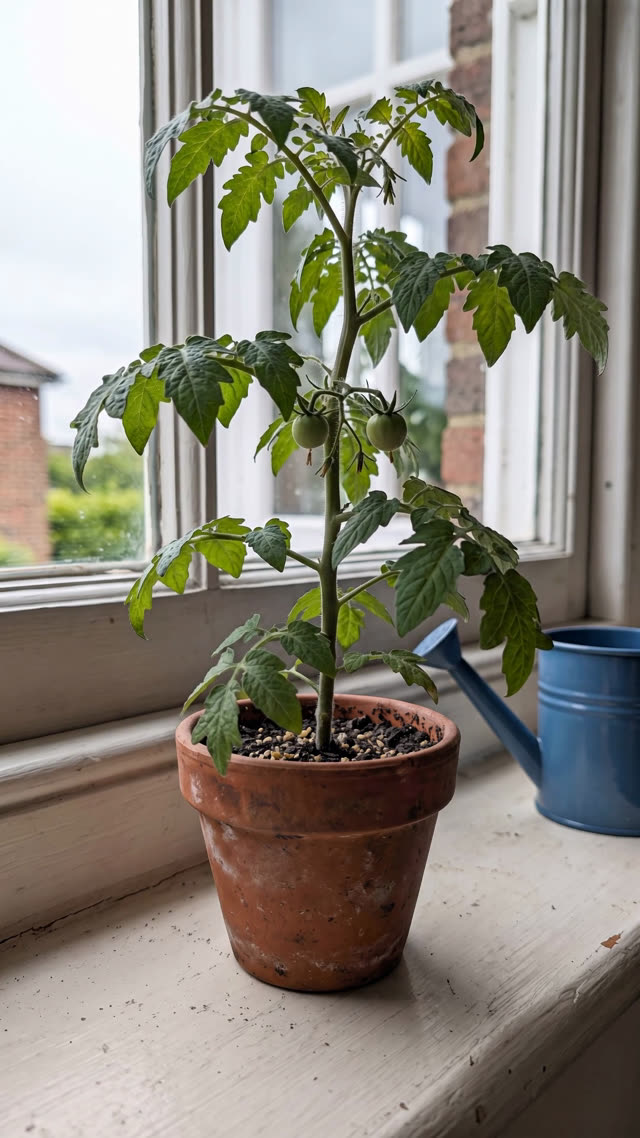
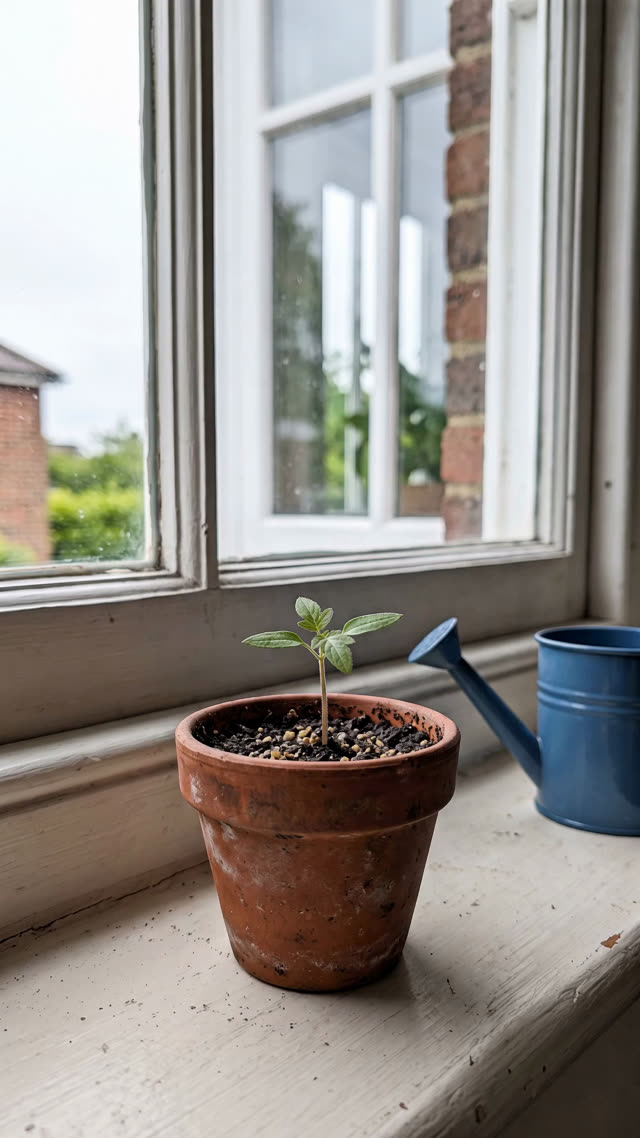
Plant before and after in the same frame
The pot, the sill and the watering can stay where they were, so the only movement is the plant. You can type the plant's height in with each photo and see it as a chart beside the photos. Some plants, young sunflowers among them, turn to follow the sun through the day, so take each photo at about the same hour.
- To work out how long the video will be, see how many photos a time lapse needs.
- Already shot a grow on your phone? Turn the photos into a time lapse in your browser.
Common plant photo mistakes
- Turning the pot for even light and forgetting to turn it back before the photo.
- Zooming in as the plant gets bigger.
- Shooting at whatever time you happen to walk past.
Plant progress photo questions
How do I make a plant growth time lapse with my phone?
Put the pot in one marked spot, frame it with plenty of empty space above, and take one photo a day from the same position in similar light. Line each new photo up with the last one, then export the set as a video. A shelf and a pencil mark on the sill do the job of a tripod rig.
How often should I photograph a growing plant?
Daily for seedlings, which change visibly within a day, and weekly for established plants or garden beds. A weekly photo for a year gives 52 frames, which plays for about four seconds at 12 frames per second.
Why does my plant move between photos?
Two reasons: the pot gets turned, and some plants change position over the day as they follow the light. Mark the pot and take each photo at the same hour.
Can my phone's time lapse mode film a plant growing?
Only for a short stretch. A phone time lapse mode speeds up one continuous video, so a grow that takes weeks needs a photo a day instead, played back in order.
Other things people track with SameShot
Get SameShot on Google Play
Start a project today. The first photo you take becomes the ghost that the second one lines up against.

SameShot: Progress Photo Cam
By Appynox, on Google Play

Free with ads; a single Premium payment removes them. Needs Android 8.0 or newer.