
How to make a selfie time lapse on Android
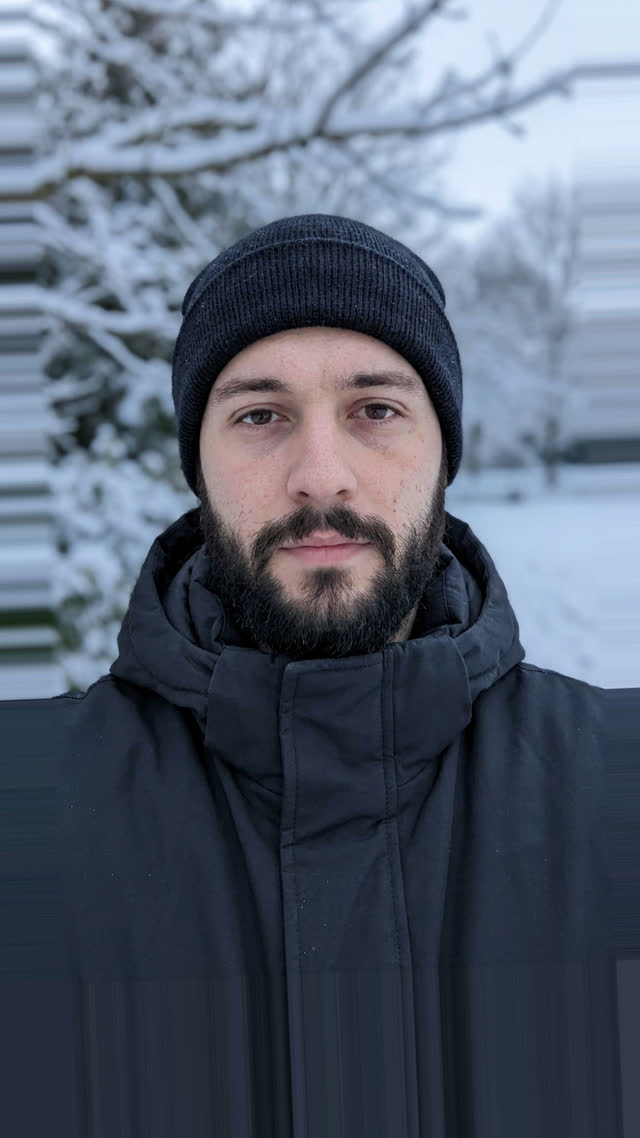
Your camera's Time Lapse mode speeds up one continuous recording, so it cannot join selfies taken on different days. Take one still a day from the same distance and light, then stitch them: a Google Photos animation (fixed speed), a frame stitcher app (you set the frame rate), an app that lines up the eyes afterwards, or a camera that lines up each selfie before you take it.
Why your camera’s Time Lapse mode cannot do this
Open the camera on many Android phones and you will find a Time Lapse mode (Samsung calls it Hyperlapse). It records one continuous video and plays it back faster. Google’s Pixel Camera help page describes it as a way “to record changes that take place slowly over time, like a sunset”, and its examples show the scale it works at: 5x turns 50 seconds into 10 seconds of video, and 120x turns 20 minutes into 10 seconds. A selfie time lapse covers weeks or months, with the phone back in your pocket between shots, and no phone records video for that long.
Samsung adds a second problem for selfies. Its Hyperlapse help page says the mode “is only available when using the back camera and is only available on specific devices”.
What you want is the other kind of time lapse: one still photo a day, stitched into a video at the end. The selfie time lapse guide covers the daily routine; this post covers four Android ways to turn those stills into a video, and what each one can and cannot fix.
What the photos need before any app touches them
Every route below starts from a set of daily selfies, and most of the quality of the final video is decided at the moment each one is taken.
Keep the distance the same. This is the one people miss, and the reason is optical. Brittany Ward and colleagues, writing in JAMA Facial Plastic Surgery in 2018, modelled a face photographed from 12 inches, the distance they use for a selfie, and found that “selfies increase nasal size by 30% in males and 29% in females compared with an orthographic projection” (a view with no perspective distortion at all). At 5 feet, a standard portrait distance, the same calculation shows “essentially no difference in perceived size”. So the shape of a face in a photo depends on how far away the lens was, and a phone held a little closer on Tuesday than on Monday makes the face swell and shrink in the video.
There are two practical ways to fix the distance: hold the phone at full arm length every time, elbow locked, or prop it on a shelf and use a self timer. The shelf is more repeatable, and it lets you stand further back, where the study shows the distortion shrinks.
Pick one camera. Phones use different lenses for the front and back cameras, so switching between them changes the face partway through the video. Keep the light and the expression too: the same light source at roughly the same hour, and a neutral face, which is easier to repeat every morning than a smile.
Make an animation in Google Photos
If your selfies are already in Google Photos, its Create tab can turn them into an animation. The Google Photos help page for Android gives the steps:
- Open Google Photos and tap Create at the bottom.
- Tap Animation.
- Select the photos you want in the animation.
- Tap Create at the top.
The same page sets out the limits. It calls an animation “a quick-moving GIF of selected photos and videos”, warns that “You can’t speed up or slow down your animation”, and says animations cannot be edited after they are made. Nothing on the page mentions lining up faces, so each selfie appears exactly as you framed it.
It is a quick way to check whether your first week or two of framing is holding. For a project that runs for months, the fixed speed is the problem: you cannot slow it down to give each day a moment on screen.
Stitch the photos with a frame stitcher app
A frame stitcher takes a set of images and writes them out as a video at a frame rate you choose. Timelapse Video Maker by HARDCODED JOY is one of them. Its Play listing says it can “create timelapse video from image sequence”, with settings for the output shape, resolution, a frame rate “up to 60 FPS” and an “image framing mode (crop / fit / fill)”.
Images are “included in the order of selection”, so select them oldest first. The free version allows a “maximum 500 images per timelapse” at “only 30 FPS”, with fewer duration options and the app’s logo at the end; a one-time Premium purchase in that app lifts those limits. Thirty frames per second is fast for a face: a month of daily selfies plays in one second, and the free cap of 500 lasts under 17 seconds. Our post on how many photos a time lapse needs suggests 8 to 15 frames per second for slow change.
The bigger limit is alignment. Crop, fit and fill decide how each photo sits in the frame; none of them moves your face, so a stitcher works well when the selfies already line up and shows every wobble when they drift. There is also a free time lapse maker on this site that runs in the browser.
Use an app that lines up the eyes after the fact
The next step finds the face in each photo and moves the photo to match. Facelapse, a free Android app, is built around this. Its listing describes the method in two lines: “The app will detect your face. Animate the photos to create a timelapse video with the eyes aligned.” It also says the app is ad-free with no paid content, and that “All image processing is done on your device”.
Lining up the eyes fixes the most visible fault in a selfie time lapse, which is the face jumping around the frame. What it cannot fix is anything that happened in three dimensions when the photo was taken. Moving and scaling a flat photo puts the eyes in the same place, but the perspective stays as it was shot: a selfie taken closer still shows the larger nose from the study above, a chin tilted up still shows the underside of the jaw, and a head turned a little to one side stays turned. Light that changed between days stays changed too.
So after-the-fact alignment does its best work on selfies already taken from a similar distance and angle, such as months of photos sitting in your gallery today.
Line up each selfie before you take it
The last route moves the alignment to the moment of capture, the only point where distance and angle can still change. This is how SameShot works, so read this section knowing we make it. In face mode, your last selfie sits faint over the live camera; the ghost overlay opens at 40% opacity, and a slider takes it anywhere from 0 to 100%. You move the phone until your face matches the ghost: the same size means the same distance, and the same outline of the jaw means the same angle. Face mode follows your face, so the photo lines up whether you take it in the bathroom, the car or a hotel room.
Auto capture fires the shutter once the frame lines up, and the self timer covers a phone propped on a shelf. After each shot the app also lines the photo up with your first one automatically (since version 1.0.5, in the version history), and a thin red, amber or green line on each photo shows how well it matched. The time lapse video uses every photo in the project, with a speed slider and an optional date stamp such as Day 12.
On the free version you get ads, one project and HD video (up to 1280 px) in the project’s own shape, with hard cuts. Premium, a one-time purchase, removes the ads and adds 1440 px video, smooth transitions and reframing to another shape. Photos stay on your phone, because SameShot has no photo server, and face detection runs on the device; the app does use the network for usage statistics (you can switch them off), ads in the free version and an optional sign-in, and none of those carries a photo (progress photo privacy lists each one).
The limit is that it only helps from the day you start. Selfies you took earlier can be imported and slot into the timeline by the date they were taken, though nothing lined them up when you shot them. SameShot is on Android only for now; the iPhone version is in development.
The four ways side by side
Everything in this table comes from each tool’s own help page or Play listing, read on 15 November 2026. We have not run the same set of selfies through all four, so the table compares what each tool says it does.
| Google Photos animation | Timelapse Video Maker | Facelapse | SameShot face mode | |
|---|---|---|---|---|
| Lining up faces | Not mentioned on the help page | Crop, fit or fill only; the face is not moved | After the photos are added, by the eyes | Before the shutter with the ghost overlay, then automatically after each shot |
| Speed control | None: “You can’t speed up or slow down your animation” | Frame rate up to 60 FPS; the free version is fixed at 30 FPS | Not stated on the listing | Speed slider when exporting; speed control during in-app playback |
| Photo limit | Not stated on the help page | 500 images free; no limit with its Premium | “Add as many photos as you want” | Every photo in the project, free and Premium |
| Cost | Part of Google Photos | Free with limits and an end logo; one-time Premium | “completely ad-free with no paid content” | Free with ads and one project; one-time Premium |
| Where photos are processed | Not stated on the help page | Not stated on the listing | “All image processing is done on your device” | On the phone; no photo server |
With selfies already in the gallery, try the frame stitcher if they line up and the eye-aligning app if they drift; before day one, the first photo is the cheapest place to fix alignment. For more apps, see the best progress photo apps for Android, and for framing by hand with the normal camera, ghost overlays and grid lines compares the two methods.
Frame rate, length and shape for a selfie time lapse
Frame rate decides how long each day stays on screen; at 8 to 15 frames per second each face registers for a moment before the next one replaces it. The length is photos divided by frames per second:
| Selfies | At 8 fps | At 12 fps | At 15 fps |
|---|---|---|---|
| 30 (about a month) | 3.8 s | 2.5 s | 2.0 s |
| 90 (about three months) | 11.3 s | 7.5 s | 6.0 s |
| 365 (a year) | 45.6 s | 30.4 s | 24.3 s |
A year at 12 fps runs half a minute, which is long for a social clip, so raise the frame rate or trim to the stretch where the most changes; the time lapse calculator does the sums for other counts. Decide the shape at the first photo, because Reels, Shorts and TikTok play vertical 9:16 video and cropping a square selfie to 9:16 later cuts away part of the frame you lined up every day. A date stamp such as Day 90 tells viewers how much time passed, which a face alone cannot do.
SameShot by Appynox is free on Google Play for Android 8.0 and up, with no account needed. If you use it for a selfie project, set the project to 9:16 at the first photo and turn on a reminder for the days you plan to shoot.
Sources
- Google, Pixel Camera Help: Record a video on your Pixel phone
- Google Photos Help: Make creations with Google Photos (Android phone and tablet)
- Samsung UK Support: What is Hyperlapse or time lapse camera mode and how to use it
- Ward B, Ward M, Fried O, Paskhover B. Nasal Distortion in Short-Distance Photographs: The Selfie Effect. JAMA Facial Plastic Surgery, 2018.
- HARDCODED JOY S.R.L., Google Play: Timelapse Video Maker
- Mothlight, Google Play: Facelapse: Face Timelapse
Frequently asked questions
Can you do a time lapse on Android?
Yes, in two different senses. The camera's Time Lapse mode (Hyperlapse on Samsung) records one continuous video and speeds it up, which suits a sunset. A time lapse of selfies taken on different days needs still photos stitched into a video afterwards, with Google Photos, a frame stitcher app or a progress photo app.
How do I make a time lapse from photos on Android?
In Google Photos, tap Create, then Animation, and pick the photos; the speed is fixed. For control over speed, use a frame stitcher app such as Timelapse Video Maker and set the frame rate yourself, about 8 to 15 frames per second for slow change. Select the photos oldest first, because that app keeps them in the order you pick them.
Can Samsung phones do a time lapse?
Yes. Samsung's camera calls it Hyperlapse, and Samsung's help page says it works with the back camera only and on specific devices. It records continuous video, so for a selfie a day you still take separate photos and stitch them with an app.
What is the app where you take a picture every day?
Several daily selfie apps exist on Android. Facelapse lines up the eyes after you add your photos. SameShot by Appynox shows your last selfie faint over the live camera so each new one lines up before you take it, then makes a time lapse video from every photo. Both are free to download.
How far away should I hold the phone for a daily selfie?
Keeping the distance the same every day matters more than the exact distance. A 2018 study found that a face photographed from 12 inches shows the nose about 30% larger relative to the face than an undistorted view, and that the effect essentially disappears at 5 feet. Prop the phone on a shelf with a timer, or always hold it at full arm length.
Line up your next photo with SameShot
SameShot shows your last photo faint over the live camera, so each new one lands in the same place. It is free on Google Play for Android.

SameShot: Progress Photo Cam
By Appynox, on Google Play